
Scan to Verify allows you to verify the contents of selected orders before ReadyShipper generates the shipping label.
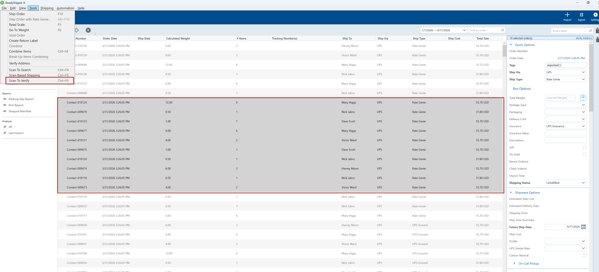
- In ReadyShipper, select the orders you want to process.
- You can select a range of orders using Shift + Click.
- You can also use Ctrl + Click to select individual orders.
- Go to Tools > Scan To Verify.
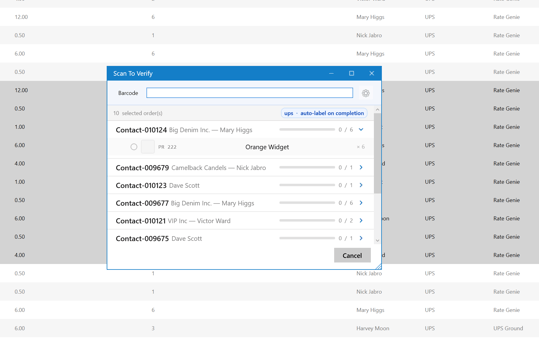
- ReadyShipper will open the Scan To Verify window and display all selected orders.
- Scan each item using your barcode scanner.
- ReadyShipper will track the number of items verified for each order.
- Once all required items in an order have been scanned, the order can be completed and the shipping label generated.
This workflow helps confirm that the correct items are packed before the shipment is completed.
Other Scan-Based Tools
ReadyShipper also includes additional scanner workflows under the Tools menu:
- Scan To Search — Scan a barcode to quickly locate the matching order in ReadyShipper.
- Scan-Based Shipping — Scan an item or barcode and, when ReadyShipper finds the matching order, process the shipment.
- Scan To Verify — Verify the required items in selected orders before generating the label.
Tip: Make sure the barcode being scanned matches the item or order data stored in ReadyShipper so the correct order can be identified.