
Order Views allow you to organize and filter orders in ReadyCloud based on criteria such as SKU, product name, shipping service, order status, tags, and other order information. Once a view is created in ReadyCloud, it can be enabled in ReadyShipper for easier order management.
- Log in to ReadyCloud and open Orders.
- Open the Order View menu and click + Add to create a new view.
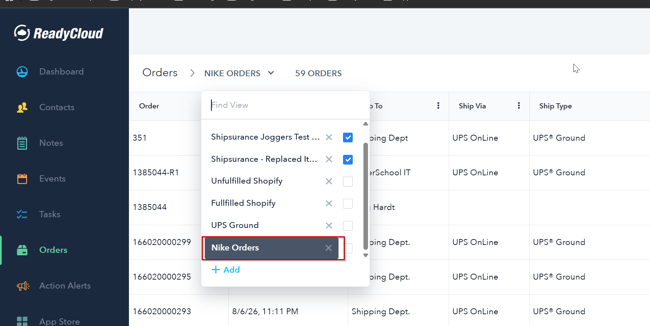
- Give the view a descriptive name.
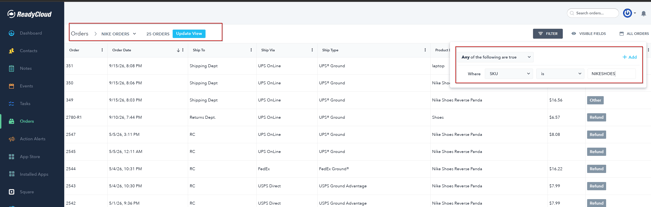
- Click Filter and add the criteria you want the view to use.
- Configure the filter based on your workflow. For example, you can filter orders based on:
- SKU
- Product name
- Ship Via
- Ship Type
- Order status
- Tags
- Other available order fields
- Add additional filter conditions as needed, then save or update the view.
- Open ReadyShipper.
- Go to Settings > Order Views.
- Refresh the available Order Views if needed.
- Locate the view you created in ReadyCloud and switch it On.
- The enabled view will now appear in the Orders section on the left side of ReadyShipper.
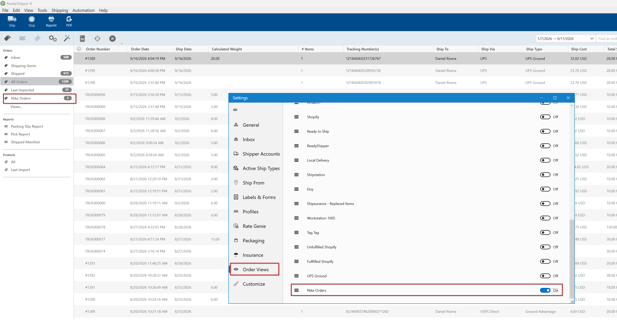
Once enabled, selecting the Order View in ReadyShipper will display the orders that match the filters configured in ReadyCloud.
Tip: Order Views can be especially useful for separating orders by product, SKU, shipping method, store, or other workflow-specific criteria.