
For organizations with multiple warehouse locations, ReadyReturns can be configured to provide multiple return location options during the return process.
This allows users to select the appropriate destination for each return, helping improve efficiency and reduce shipping costs.
1. Create Warehouse Locations
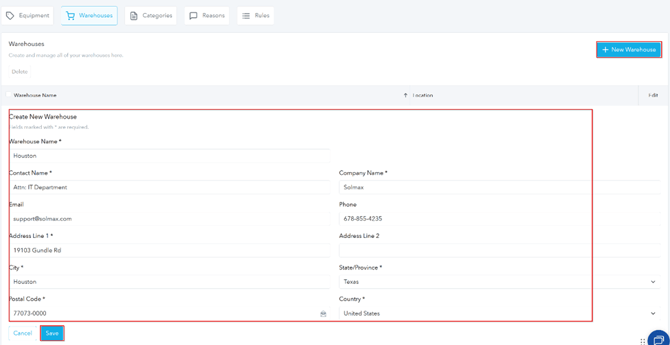
Navigate to ReadyReturns > Rules Manager > Warehouses. Set up each warehouse/location with its specific address and warehouse name.
2. Create a Reason Group
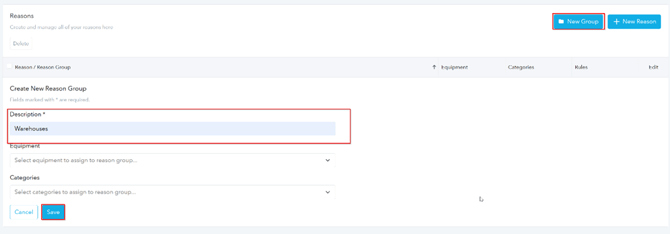
Navigate to ReadyReturns > Rules Manager > Reasons. Create a new Reason Group named “Warehouses”
3. Create Reasons for Each Warehouse
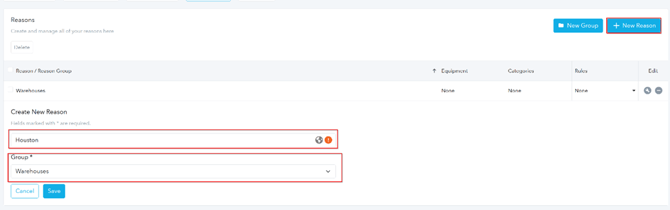
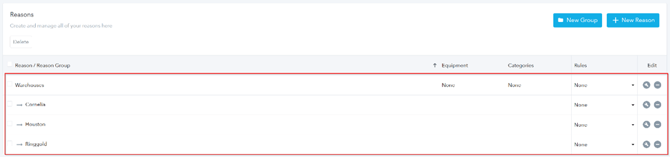
Create a new reason for each warehouse/location and assign each one to the Warehouses reason group.
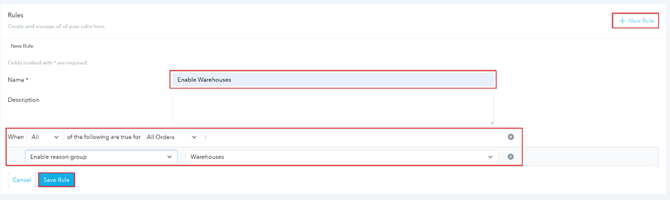
4. Create Rule to Enable Reason Group
Navigate to ReadyReturns > Rules Manager > Rules. Create a rule to enable the Warehouses reason group using the appropriate conditions, then save.
5. Create Rules for Each Warehouse
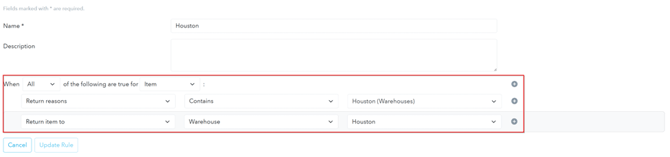
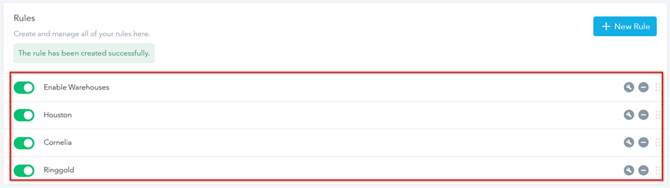
Create a separate rule for each warehouse and configure it using the conditions shown in the screenshot.
6. Validate Setup
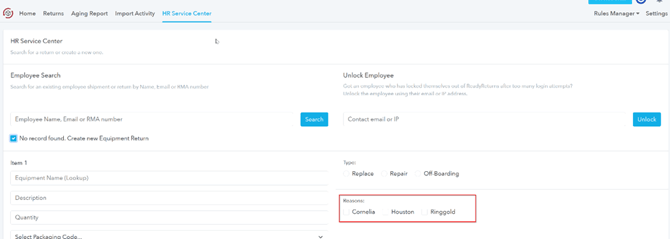
Navigate to ReadyReturns → HR Service Center to confirm the warehouse options are appearing as expected.
7. Validate Setup in Asset Return Themes
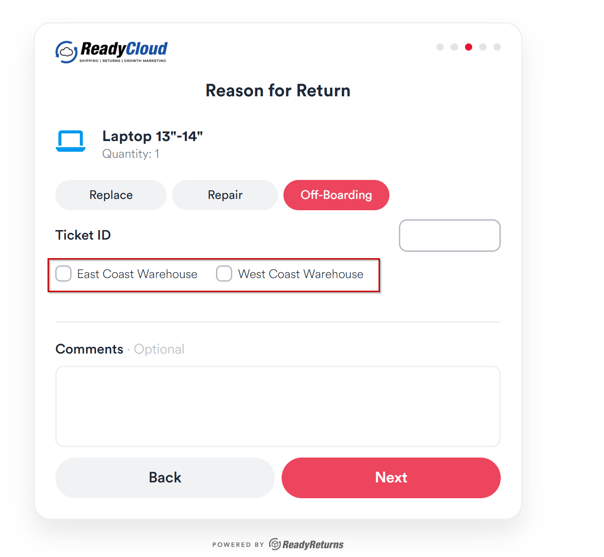
If you're using one of the updated Asset Return Themes, the additional return locations will appear on the Reason for Return page after selecting a return type (Replace, Repair, or Off-Boarding).
Select the appropriate return location to specify where the equipment should be returned.
Notes
- Ensure “Reasons Allowed” is set to 1 in settings when using multiple return locations
- If no warehouse is selected, returns will default to the main location
- Multiple items in a single return must go to the same location, mixed destinations are not supported