
ReadyShipper includes several preset keyboard shortcuts that allow you to perform common shipping and order-management tasks without navigating through menus.
You can view available shortcuts directly from the ReadyShipper menu bar. Starting from the left:
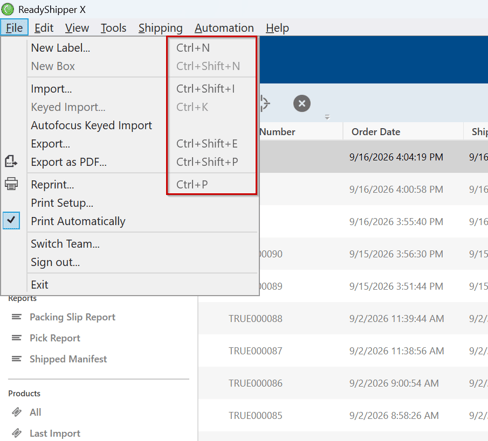
- Open File to view shortcuts for creating, importing, exporting, and printing:
- Ctrl + N — New Label
- Ctrl + Shift + N — New Box
- Ctrl + Shift + I — Import
- Ctrl + K — Keyed Import
- Ctrl + Shift + E — Export
- Ctrl + Shift + P — Export as PDF
- Ctrl + P — Reprint
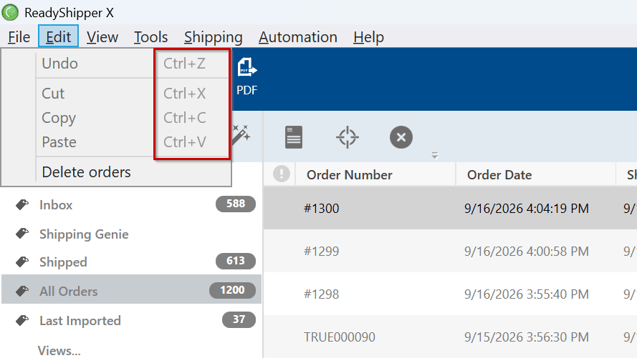
- Open Edit to view standard editing shortcuts:
- Ctrl + Z — Undo
- Ctrl + X — Cut
- Ctrl + C — Copy
- Ctrl + V — Paste
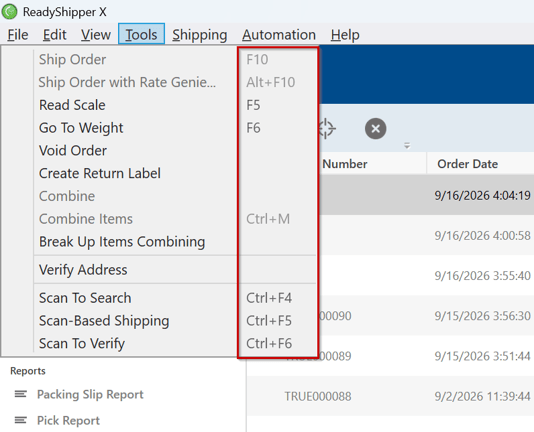
- Open Tools to view shortcuts for common shipping and scanning actions:
- F10 — Ship Order
- Alt + F10 — Ship Order with Rate Genie
- F5 — Read Scale
- F6 — Go To Weight
- Ctrl + M — Combine Items
- Ctrl + F4 — Scan To Search
- Ctrl + F5 — Scan-Based Shipping
- Ctrl + F6 — Scan To Verify
ReadyShipper also supports standard Windows selection shortcuts when working with orders. For example:
- Ctrl + A — Select all orders in the current view
- Shift + Click — Select a range of orders
- Ctrl + Click — Select or deselect individual orders
These shortcuts can be especially useful when working with batches of orders.
Tip: Menu items that are currently unavailable may appear grayed out depending on the selected order or current ReadyShipper workflow.