
Step 1: Click the "Import" button.
.png?width=670&height=321&name=file-7DiXRngwoX%20(1).png)
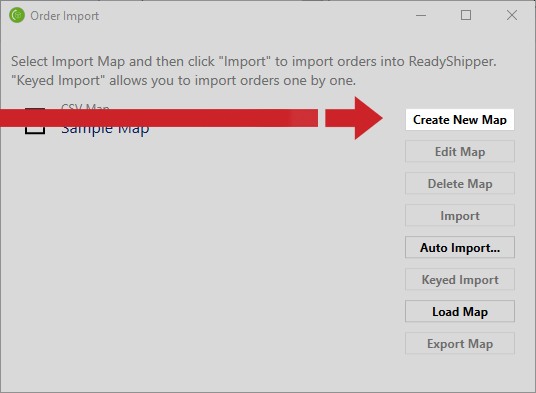
Step 2: The "Import Orders" window will appear. Click the "Create New Map" button.
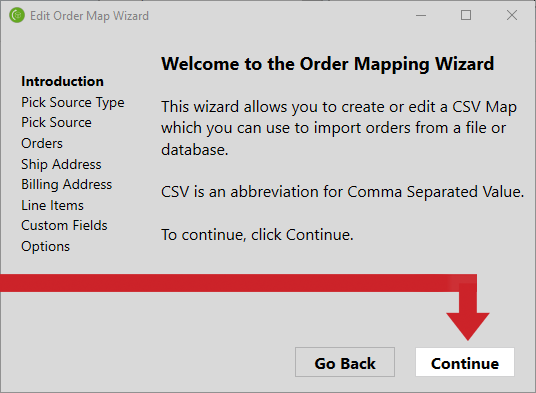
Step 3: The "Edit Order Map Wizard" window will appear. Click the "Continue" button.
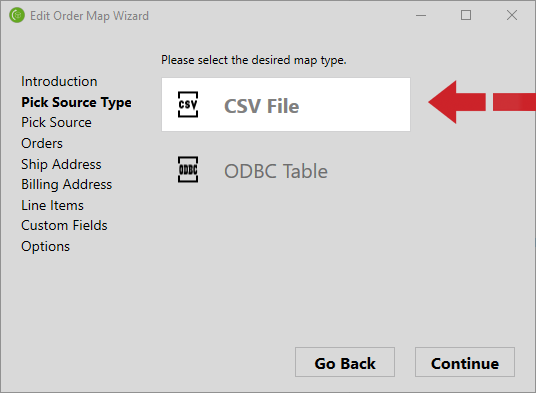
Step 4: Select the "CSV File" option.
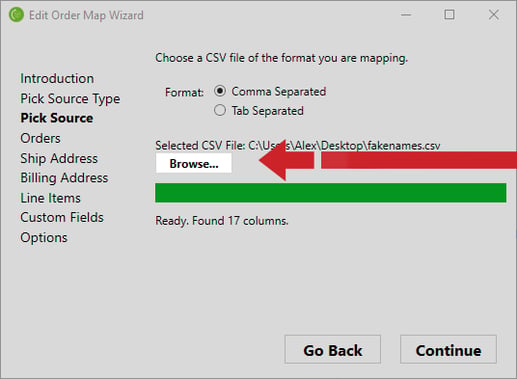
Step 5: Click the "Browse" button and select your CSV file.
NOTE: Make sure the correct number of columns are detected.
Step 6: Choose which fields from ReadyShipper you would like to map to columns from your CSV file.
Go through each of the 5 sections: Orders, Ship Address, Billing Address, Line Items, and Custom Fields
.gif?width=536&height=393&name=file-OhxO8QpDUi%20(1).gif)
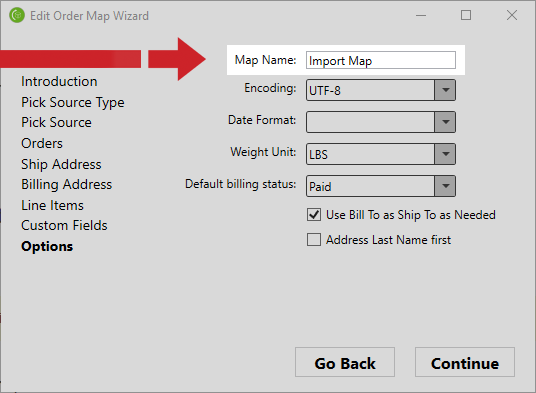
Step 7: Give your new import map a name. Select a date format, weight unit, and default billing status if necessary and then click the "Continue" button.
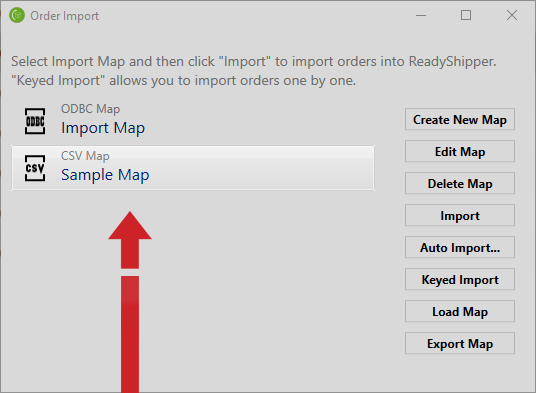
Step 8: Select the new import map you just created and click the "Import" button.
Step 9: Wait for your orders to finish importing.
.png?width=566&height=415&name=file-KKeodTjEi5%20(1).png)