
ReadyShipper allows you to update certain order values across multiple selected orders at the same time using the View Inspector on the right side of the screen.
1. Select the first order you want to update.
2. Hold Shift on your keyboard.
3. Scroll to the last order you want included, then click it. All orders between the first and last selection will be highlighted.
4. Check the status area above the View Inspector to confirm how many orders are currently selected.
5. In the View Inspector, update the field you want to change. The new value will be applied to all selected orders where that field can be updated.
You can use batch updates for fields such as Ship Via, Ship Type, Tags, Shipping Status, shipment options, and other editable order settings.
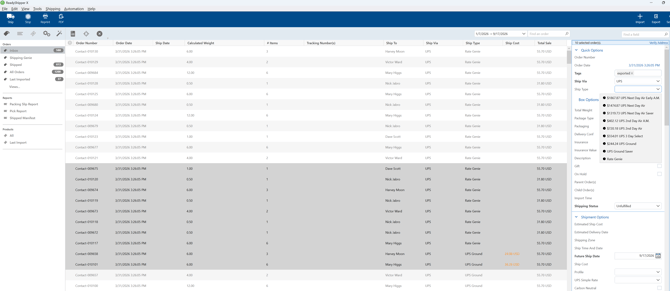
In the example above, multiple orders are selected and the Ship Type field is being updated from the View Inspector.
Important: ReadyShipper allows up to 200 orders at a time when batch updating order values through the View Inspector.
This limit does not apply when simply selecting orders to Ship or Print. For shipping and printing workflows, you can select more than 200 orders at once.
Tip: Before making a batch change, confirm the selected order count and review the highlighted orders to make sure you are applying the update to the correct group.