- Log-In to ReadyShipper X.
- Go to Orders.
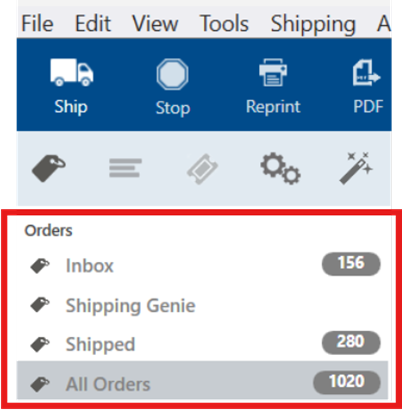
- Select the order that you want to add multiple boxes.

- Select the Add box from the right side.
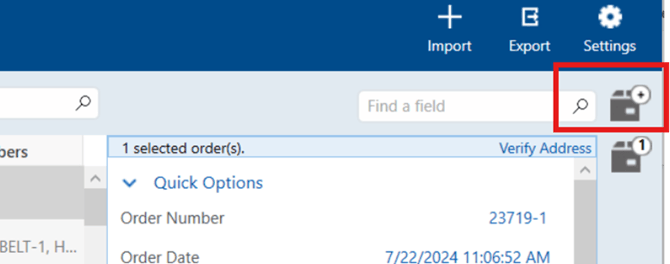
- Click on the Add button.
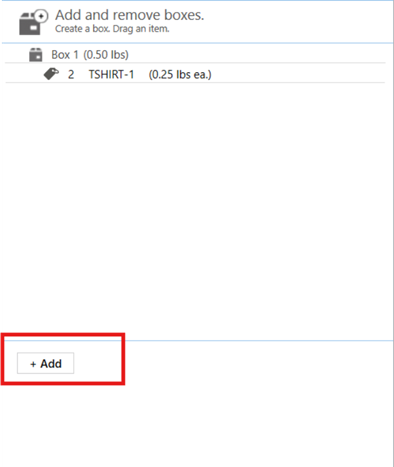
- Once you click on the add button, you will see another box will be displayed.
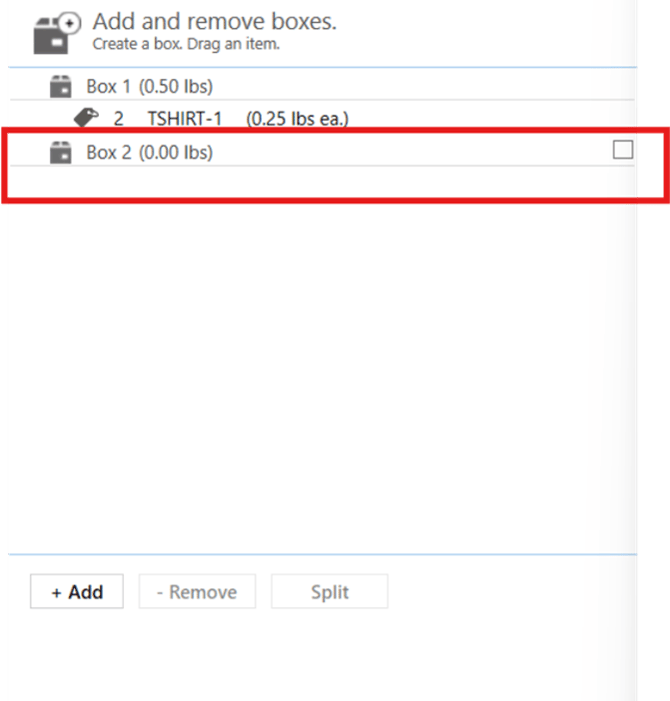
- Add as many boxes as you want.
- Select the item that you want to add into another box and drag it to another box.
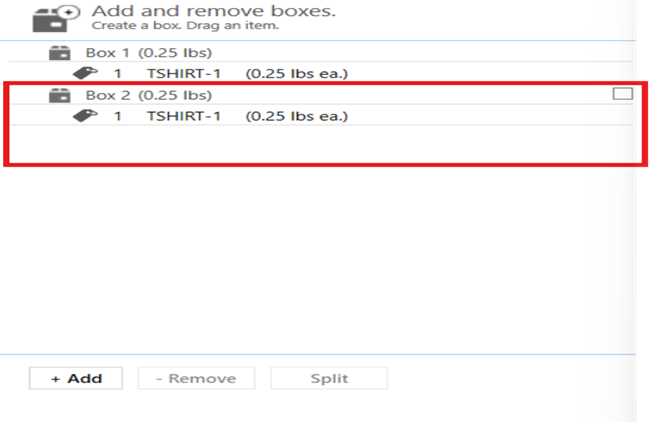
Automation Rule for adding a box.
- Log-In to ReadyShipper X.
- Click on the Automation button.
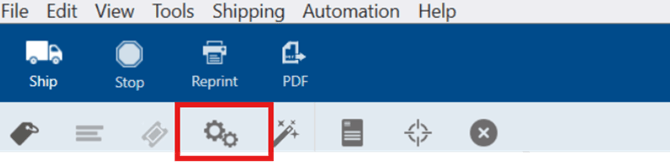
- Automation Rules page will pop up.
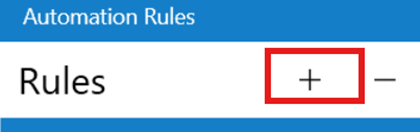
- Click on the + button to add a new rule.
- Type the name, Description, and Shortcut key.
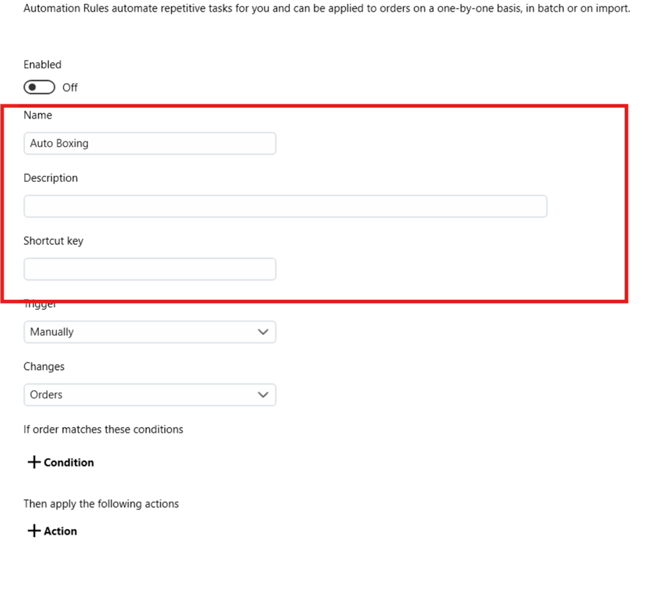
- Add a trigger that how you want this rule to apply.
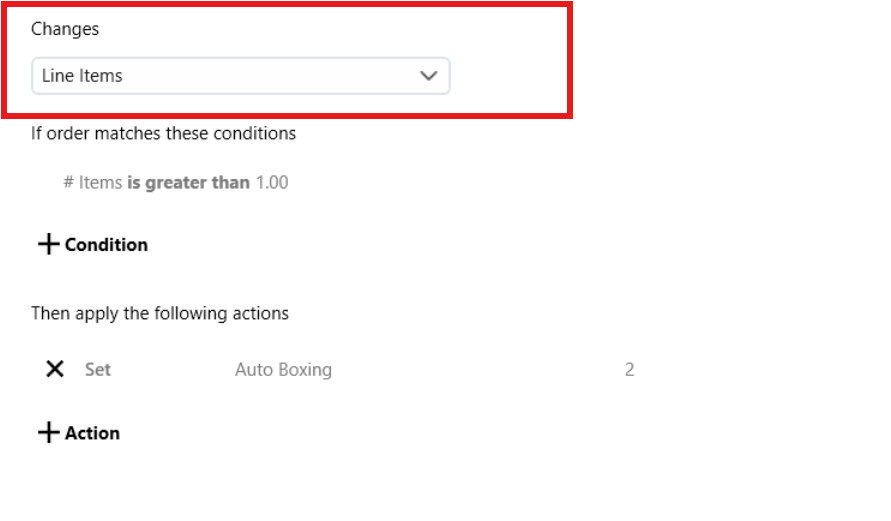
- Select Line Item from the changes.
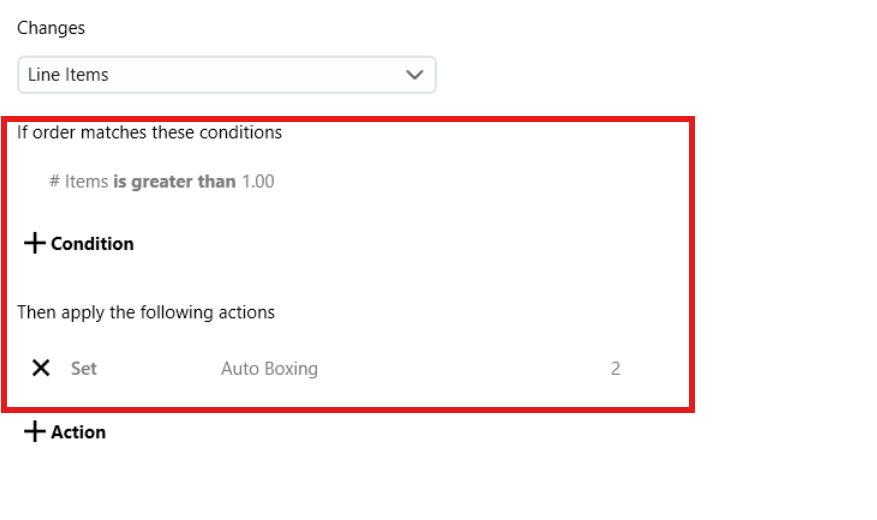
- Add a condition and action.
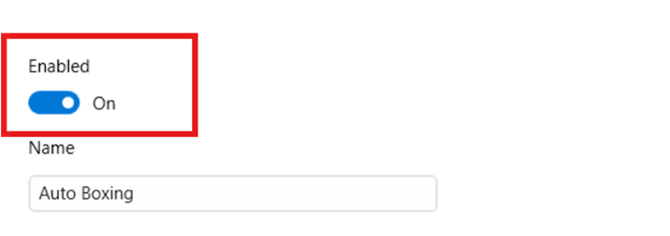
- Enabled the rule.